Updated October 20, 2014
Installing Cyanogenmod
Installing Cyanogenmod (CM) is not entirely necessary for this project, but I do recommend it, as it contains some powerful options that will make it a lot easier to get the tablet to behave the way you want it to.
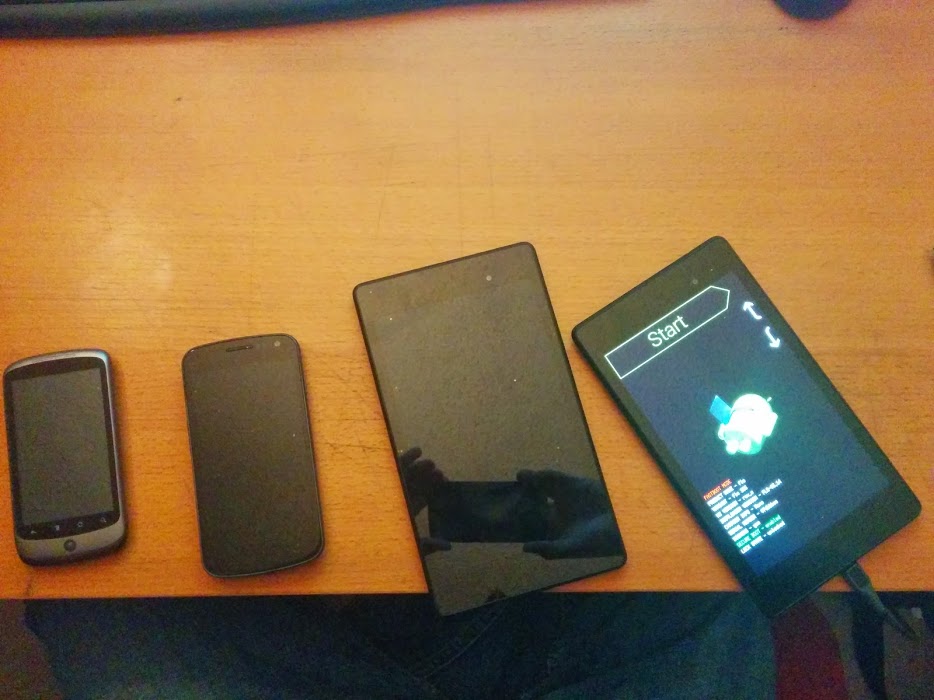
All of these instructions assume a Windows 7 computer, because that’s what I have. Also, I assume no liability if following these instructions messes up your tablet. This is what worked for me. I make no guarantees that it will work perfectly for you.
- On your computer, download the Google USB driver and install it using the Device Manager.
- Download the Android SDK (software development kit), unzip it, rename the folder to adt and move it to the root of the C:\ drive.
- Use the command prompt to navigate to C:\adt\sdk\platform-tools
- Connect the tablet to your computer via USB.
- On your tablet, you need to enable the Developer Options menu. To do this, go to Settings, About Device, and tap the Build Number 7 times. Go back to the main Settings menu and you’ll see that a new Developer Options link has appeared. Open it.
- Enable USB debugging. Wait for an authorization pop-up when your computer tries to connect, and tap “Allow.” Exit the Settings menu.
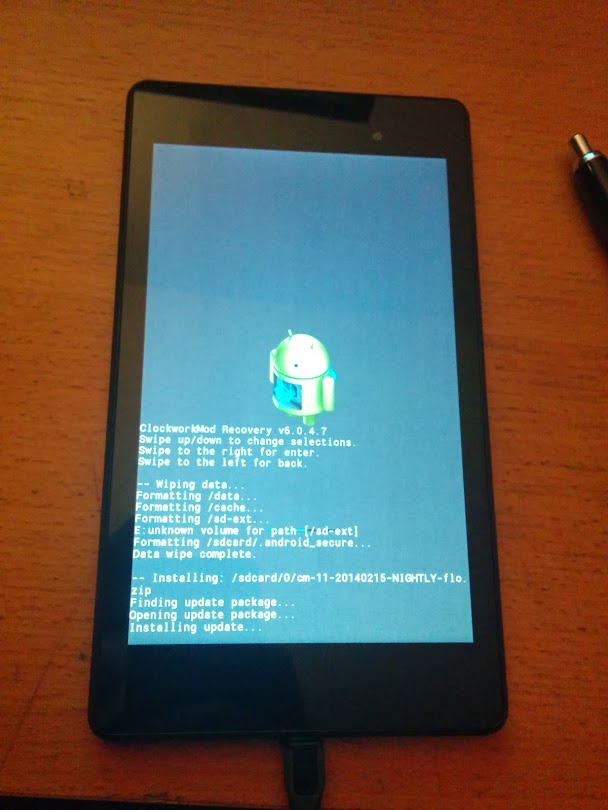
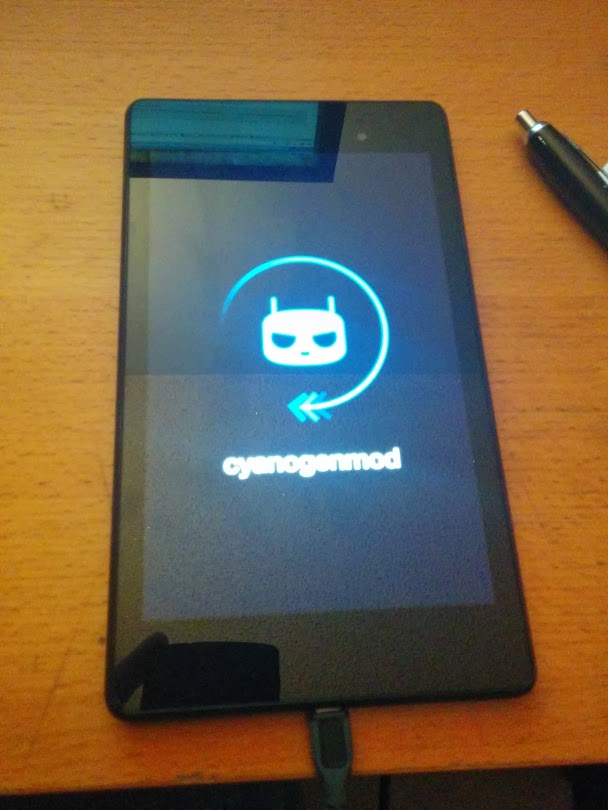
- On your computer, follow these instructions to install Cyanogenmod (Nexus 7 2013 Wi-fi-only version. There are other instructions available on the CM wiki if you have a different tablet.) Steps 1-6 above give you a head start. NOTE: After installing recovery, do not immediately boot into recovery. Instead, transfer the CM .zip file to the tablet’s internal storage (“sdcard”) using adb. Then, boot into recovery and proceed.
- After installing CM, you will probably have trouble connecting it to your computer via USB. Change the driver again using these instructions. Then, re-enable USB debugging (Developer Options menu needs to be re-enabled by doing the tap-7-times trick) and authorize your computer when the pop-up appears.
- A problem you may have after you’ve disabled USB debugging is that the computer won’t see the tablet when it’s plugged in unless it’s in USB debugging mode. This makes it impossible to transfer files via USB using the traditional Windows drag-and-drop approach. To fix this, go into the tablet’s Settings, Storage, click the 3 dots in the upper right corner, go to USB Computer Connection, and enable MTP.
Adjustments to make
Make tablet automatically turn on when it receives external power
This is important in case your tablet’s battery dies while you are away from your car. First, enable USB debugging. Then, on your computer:
adb reboot bootloader

fastboot devices (verify connection)

fastboot oem off-mode-charge 0
The tablet will then reboot itself.
In the Display menu
- Brightness: Increase to ~50% and disable auto. I’ve found that the auto function dims it too much in my car. I still want to have auto-dimming, but the default function is not quite right for this application, so I will need to figure out an alternative approach (probably using Tasker).
- Rotation: Disable all modes except 90 degrees (or 270 depending on how you intend to mount the tablet).
- Sleep: Set to 30 minutes. This effectively disables the auto screen dimming that happens after a period of inactivity.
- Daydream: Turn off
- Font size: You might want 130% (the maximum) since you’ll always be using the tablet at arm’s length, but I’ve found that the labels of the bottom row of icons on the home screen get clipped if you make the font size too big.
In the Developer Options menu
- Enable Stay Awake
- Enable Advanced reboot (allows easy booting into recovery mode, which is important for the next thing on this list)
Get the Google apps
CM does not come with the Google apps because they’re not allowed to include them in the default software bundle. Obviously, though, you’ll want Play Store at the very least to be able to install additional apps easily. You can download the apps here. Install the package by transferring the zip to your tablet’s root directory via USB, then rebooting into recovery mode and using the install function.
After installing the Google apps, add your Google account by going into Settings, scrolling down to Accounts, and clicking Add Account.
Open Gmail and disable notifications, unless you really want to be getting Gmail notifications on your car-mounted tablet.
Tasker
Tasker is a critical app for a car installation of an Android tablet. Buy it from the Play Store for $2.99, it’s well worth it.
Theft Mitigation/Avoidance
It’s important that you read this bit about anti-theft provisions, and how to mitigate damage in case of theft.
Bluetooth
If you are planning to use bluetooth tethering to give your tablet internet access via tethering to your phone, there are two important apps you need to install.
On the tablet, install Bluetooth Auto Connect. This will automatically try to connect to any bluetooth device that is paired to the tablet when it comes into range.
On your phone, install Bluetooth Auto Tether. This will automatically enable sharing internet via bluetooth tethering when the phone starts up.
On your phone, go into Settings, “More…” under Wireless & Networks, Tethering & portable hotspot, and enable Bluetooth tethering.
You now need to pair the phone to the tablet. To do this, go into Settings, click Bluetooth, turn it on, and tap the name of your device at the top of the list. This will put it into pairing mode for two minutes. Then, on your tablet, do the same thing. After a moment, they will see each other, and you will be able to pair them. The apps listed above will help facilitate that this happens automatically whenever the two get within range of each other.
On your tablet, in the bluetooth menu, there will be an options button to the right of your phone on the list. Tap it. Check the box for internet access.
You will also need to pair the tablet with your car stereo. This is similar to how you paired it to the phone, but the stereo will have its own instructions for how to pair it. Follow the manufacturer’s instructions. After pairing, go into the bluetooth menu on your tablet, and go into the options for the stereo. Check the box for media audio but do not check the box for phone audio.
If you are also tethering your phone to your stereo, go into the bluetooth options on your phone, go into the options for the stereo, and check the box for phone audio, but do not check the box for media audio. If you don’t do this, your stereo may try to pull its audio source from your phone instead of your tablet.
I’m still working out some bugs with the bluetooth auto-connection between my tablet and phone and my tablet and stereo, but at this point I’ve got it working about 95% of the time. Installing those two apps is critical to getting this to work, though.
Other apps I installed
- Chrome browser
- Facebook (Ever been stuck in a long line at a stoplight? Where you have to wait through 3+ cycles of the light to make it through the intersection? Yeah, you’ll be glad you have Facebook or Angry Birds or something installed to pass the time in those situations.)
- Pandora (paying for the premium no-ads service)
- Spotify (paying for this too)
- MX Player (great video player app, freeware)
- ES File Explorer (very good file explorer app, freeware)
- Google Voice (freeware)
- 2014-10-20: This is now integrated into Hangouts, which used to be called Google Talk. After 8 months of having my tablet installed in my car, I have only sent one or two texts from it, so this has proven to be more or less pointless.
- 2014-10-20: Not an app, but a new kernel: The ElementalX kernel currently available for the 2013 N7 is compatible with Cyanogenmod and adds some nice new features.
-
- It adds double-tap-to-wake functionality which is very useful. Sometimes (once a week or so) my car’s 12 V supply to the stereo has a hiccup when the car is starting up, which can cause the tablet to lock itself even though it does have power. The double-tap-to-wake function lets me wake it up without having to turn the car off and back on, which was my previous fix because the N7 power button is not accessible.
- It adds a function to limit battery charging to 93%, which supposedly will improve battery life. (I have yet to see my battery drop below 70%, and that was when I was out of town for a week.)
- It claims to provide support for USB OTG+charging, but it doesn’t, really. Fortunately, Timur has released his USB ROM for the N7 2013, finally. Unfortunately, he’s now charging 30 euros for it, which is almost $40 USD.
Backups
After you have everything set up the way you like it, I highly recommend making a full backup. I did this using the Nexus Root Toolkit which also includes other useful functions such as rooting your tablet or phone (if you’re so inclined). With a full backup, you will be able to restore your tablet if you screw something up, and if the tablet gets stolen, you’ll be able to buy a replacement and quickly turn it into a clone of your old setup within minutes of receiving it.
To root or not to root
The above-linked Nexus Root Toolkit can be used to gain root access to (“root”) your tablet. You need root access for some of the more advanced functions in Tasker. Note that while unlocking the tablet wipes it (security in case of theft), rooting the tablet does not. You must unlock the tablet to be able to root it. In my case, I rooted the tablet and it seemed to work fine.
Improvements I’m working on
- Speed-based volume control. 2014-10-20: I am using this GPS volume control app in conjunction with Tasker. This is pretty smooth. As part of my “wake” task which runs when the tablet is unlocked, I added the following sequence which automatically starts up the app and takes me back to the home screen within about 2 seconds of unlocking:
- Wait 150 ms
- Start GPS Volume Control
- Wait 150 ms
- Go to home screen
- Smarter auto-screen-dimming. I think this can be done with Tasker.
Known bugs
- Pandora crashes if it starts up and all that’s available is a tethered bluetooth internet connection, and if it doesn’t have an internet connection at all, it won’t start up, either. It will only start up if it’s on wi-fi. Of course, once you have Pandora running, it stays running regardless of whether it has an internet connection, and it’s happy to use bluetooth tethering. The solution to this is to enable wi-fi tethering on your phone temporarily, log into the phone’s wi-fi hotspot on the tablet, start Pandora, and then disable wi-fi on both and go back to the bluetooth tethering. Just don’t force-quit Pandora and this problem will not bother you again. 2014-10-20: This is no longer an issue with the version of Cyanogenmod I am running (CM11 M11) and the latest version of the Pandora app. Also, for most of the last few months, the Pandora app was functioning really poorly, but a recent update seems to have fixed things. Right now Pandora runs great. I have noticed that Spotify is more reliable than Pandora, so if your Pandora starts acting up, you can use Spotify radio as a stopgap, although it’s not quite as good as Pandora in my opinion.
- Pandora doesn’t auto-resume after the tablet wakes up. You have to click the skip track button to wake it up after unlocking the tablet. Between that, and the time it takes to punch in my PIN and for the bluetooth tether to re-establish itself, it takes about 10-20 seconds from starting the car until music starts playing.
- The tablet doesn’t always auto-bluetooth itself to the stereo head unit. It seems to work every time if I’m just getting in the car and starting it up like normal, but for some reason, if I turn the key to the point just before it starts, and all the electronics come on, and then I spend time screwing around with the tablet, and then start the car up later, it sometimes won’t connect. I have to go into the tablet’s bluetooth options and forcibly tell it to connect to the stereo, at which point it always seems to connect without issue. Taking the head unit’s faceplate off also seems to sometimes trigger issues. 2014-10-20: The best fix for this seems to be the Bluetooth Auto Tether app. You can add an icon to your home screen which tries to connect to any nearby paired devices. I have to use this a couple of times a week to nudge the tablet into tethering with either the phone or the head unit. Usually works.
- 2014-10-20: Sometimes I just can’t get tethering to my phone to work. It will connect, and the tethering icon shows up on the phone, but no internet access is provided. When that happens, usually one of these tricks works:
- Disable and re-enable bluetooth on the tablet
- Disable and re-enable bluetooth on the phone if that doesn’t work
- Nuclear option: Restart the phone. This seems to always work but it’s the biggest hassle.